
1. Sign in to Dovod.
Open Dovod and create an account or sign in. Your projects belong to a workspace; if you use a team, make sure you can create and edit its projects.
Open Dovod ↗Self-hosting uses your own instance address throughout the steps below.
2. Connect your AI client.
Choose Codex, ChatGPT, Claude Code, Claude, Cursor or another compatible MCP client. Add the remote server address below using that client’s supported setup flow.
https://dovod.app/mcp
Complete the supported authorization flow. Where the client accepts bearer credentials, you can create a personal API key in Dovod Settings → API Keys. Keep credentials in the connection settings.
Choose a client and read its requirementsFirst ask the assistant to list your Dovod projects. An empty list is a valid result for a new account. A connection error is a setup problem to resolve before asking it to save work.
3. Describe the decision you need to make.
Give your assistant the question, constraints and any permitted source material. Ask it to read the Dovod guide and save the brief before drawing conclusions.
Use my Dovod connection. Read https://dovod.app/llms.txt and the relevant research guide. I want to choose search for a support knowledge base. Ask about my constraints before comparing tools. Create a project, save the agreed brief, then save one finding with its source URL, checked date and what it does not establish. Return the project and entry references so I can open them in Dovod.
4. Open the saved finding in Dovod.
Follow the project reference the assistant returns. Open the finding and check three things: what it claims, which source supports it and what remains unknown. If it exists only in the chat, ask the assistant to save it and return its entry reference.
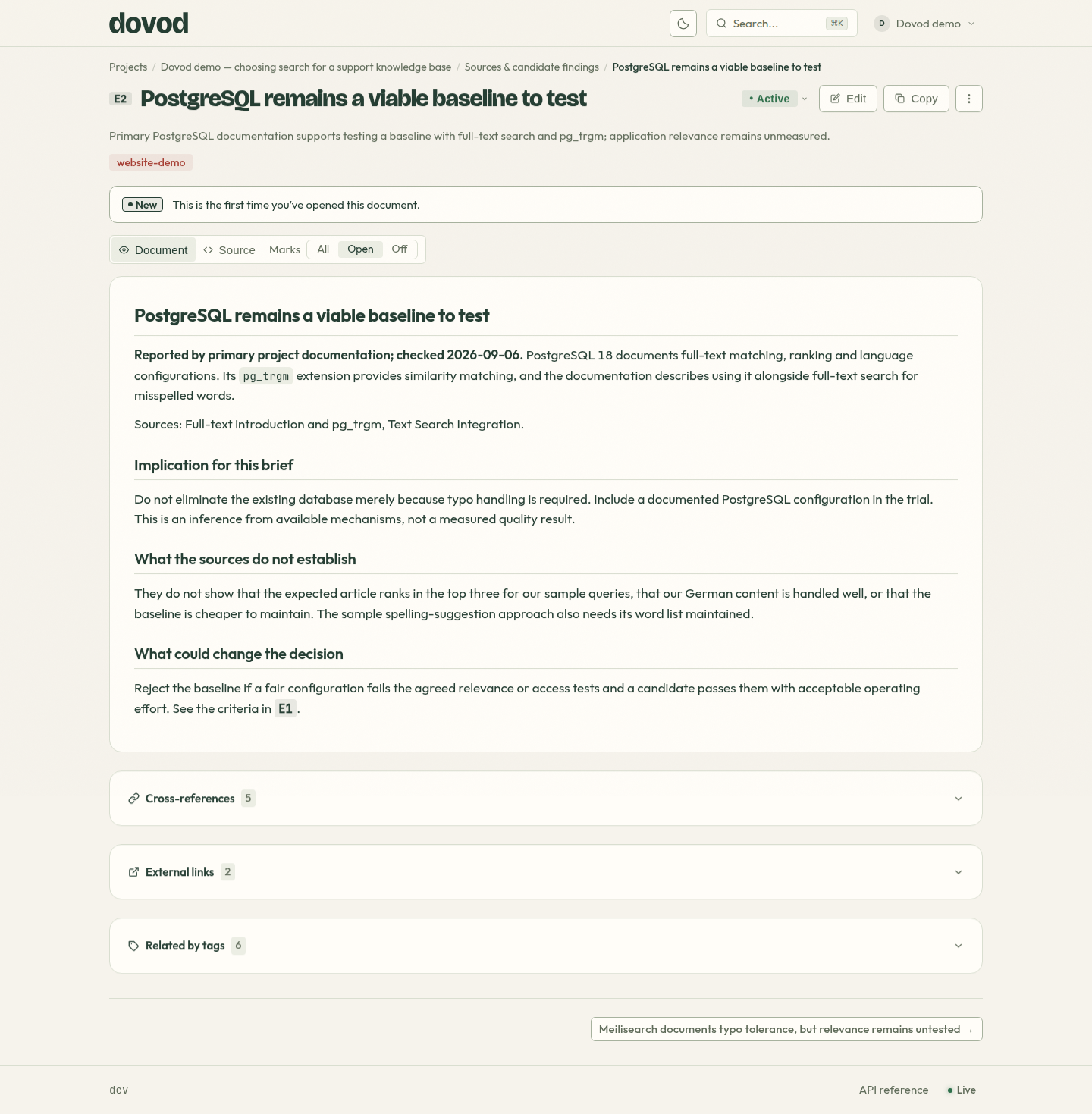
For example, the PostgreSQL note establishes a mechanism worth testing. It does not claim that PostgreSQL wins the search comparison.
Follow the complete worked example5. Return to the same project.
Keep the project reference. In a later conversation, ask your connected assistant to read the existing work and open tasks before continuing.
Open my existing Dovod project using the reference I provide. Read its brief, findings and open tasks. Summarize what is established and what is still unknown, then propose the next useful step. Do not create a duplicate project or treat an untested claim as a fact.
Your project persists when the chat closes. Further research happens when you ask your assistant to work again.
If the first result does not appear.
- No Dovod tools: check that the client supports the configured MCP connection and that it is enabled.
- Authorization refused: complete sign-in or check the credential in client settings.
- Project visible but not writable: check your role in the selected team.
- Only a chat answer: ask for a saved entry reference, then open it in the project.
Reading llms.txt provides instructions. It does not authenticate the client or save a document on its own.